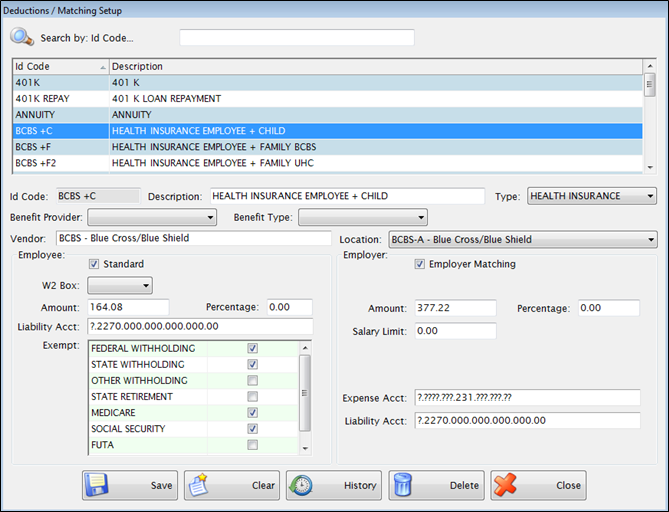
This section is used to set up payroll deductions and employer matching. The Payroll Deductions entered here are an integral part of payroll processing.
Several deductions are predefined in LINQ Payroll:
These deductions will be applied to all Employee Jobs, unless the deduction is unchecked under Employee Job: Subject To. The settings can be changed for predefined deductions but cannot be deleted or renamed.
Complete the setup for the predefined deductions as described under other deductions.
All other deductions are applied based on the settings under Employee: Deductions. These deductions are optional and will not apply to an employee’s job unless they are active on the Employee Deduction screen AND the Employee Job allows deductions.
Complete the following form to add a deductions and matching information:
All predefined and new deductions will appear in the upper grid.
If form is not clear, click Clear to start a new deduction. Otherwise, begin filling in the form.
Enter a unique short ID code for each deduction in the ID Code field. The Id field is alpha or numeric.
Enter the complete description for each deduction in the Description field. Descriptions must be unique as this will be displayed on the Employee Deduction screen and printed on check stubs.
Select Health Insurance in the Type dropdown list if applicable. This is used to indicate deductions used for your unit’s health insurance for report purposes. You may have more than one deduction marked as health insurance.
Select the Vendor and Vendor Location where the payment will be sent. When finalizing the payroll process, invoices will be generated to this vendor for the employee withholding and employer matching amounts for this deduction. Vendors and Vendor Locations are managed in Fund Management.
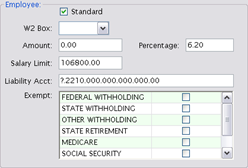
Check the Standard box if the same deduction Amount or Percentage applies to everyone. If unchecked the amount or percentage will be set on the Employee Deduction screen.
If this deduction is to be reported on W2 forms, select the appropriate value from the W2 Box dropdown list based on IRS W2 regulations. If box 12 is selected, you will also need to enter the IRS Letter Code. The IRS Letter Code field appears when 12 is selected.
Enter an Amount or Percentage to be deducted from gross pay in the appropriate fields. Both should be blank if Standard is not checked.
Enter the account code template to be used for the employee withholding in the Liability Acct field. It will use the job’s account digits in place of the question marks on the template.
In the Exempt grid, check the appropriate boxes if this is a tax-sheltered deduction.
EMPLOYER SETTINGS
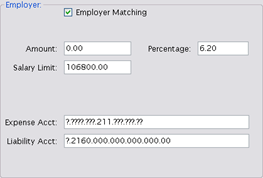
Check the Employer Matching box if an employer contribution currently applies for this deduction. If unchecked, matching will not apply even if an amount or percentage is entered below. The check box can be used to turn off the deduction temporarily and reinstate without reentering information. You are allowed to have a deduction set up with employer matching but no employee amount.
Enter an Amount or Percentage in their respective fields, but not both.
If an annual salary limit applies to this deduction, enter it in the Salary Limit field.
The designated Salary Limit amount will apply to employers matching for FUTA and SUTA deductions.
Enter the expense account code template for the Employer’s share of the expense in the Expense Acct field. It will use the job’s account digits in place of the question marks on the template.
Enter a liability account code template for the Employer’s share in the Liability Acct field. It will use the job’s account digits in place of the question marks on the template.
Click Save.
Click  to delete a deduction. After clicking the Delete button, a warning message will display asking if you want the deduction deleted from all of the employees that have that deduction. Clicking Yes will delete the deduction from all employees; clicking No will leave the deduction as-is.
©2019 EMS LINQ, Inc.
Payroll, revised 04/2019