Hours Worked
Hours Worked is for entering hours worked for employees who are paid
based on an hourly rate. Hours for all non-exempt jobs, entered and approved
through. TimeKeeper,
also appear in Hours Worked and can be edited or deleted. Hours Worked
is used to add, change and deleted the hours worked by an employee.
Hours Worked Form
Complete the following form to add hours
worked:
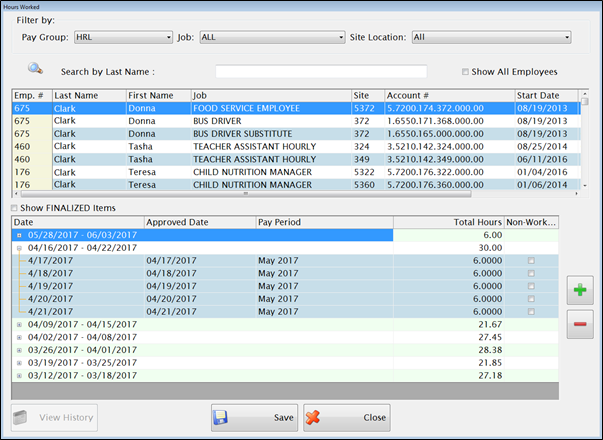
FILTER BY
Filter By allows you to filter the records to be displayed. Records
are primarily filtered by the Pay Group dropdown list, but the search
can be narrowed further by selecting from the Job and Site Location filters.
You can also search for an individual record by clicking on a column heading
in the upper grid to change the Search by field at the top.
LOWER GRID
- Check the Show FINALIZED Items box to view Historical hours. These hours cannot be modified or deleted since they were included in the employee’s paycheck.
- Click the green plus button to add a new record.
- A form for data entry appears in the lower grid:
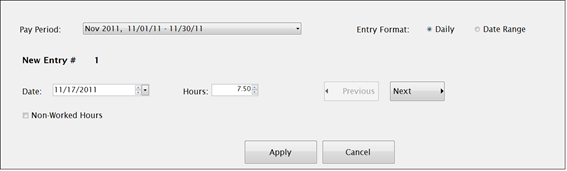
- Select the Pay Period these hours are to be paid in from the Pay Period dropdown list. The dates worked do NOT have to be within the Pay Period dates.
- Select Daily or Date Range from Entry Format to determine the input format.
- In the Daily Entry Format, the number of hours defaults to the Hours Per Day for this job, multiplied by the percent employed. It can be revised if they did not work that number of hours.
- Click the Next button if you want to enter a sequence of daily entries.
- In the Data Range Entry Format, enter the TOTAL number of hours worked over the selected date range using the Begin Date and End Date fields. It will spread the hours evenly over the selected days.

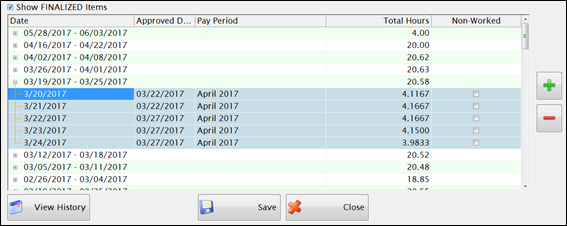
- Click the green plus button to add more hour or edit non-finalized hours in the lower grid.
- Click Save. The lower grid displays the entered hours.
- Weeks can be expanded to see the individual records making up the total hours in the week. You can adjust the hours by double clicking in the Hours field.
- Date, Approved Date, and Pay Period cannot be edited. The record must be deleted and re-entered if one of those fields needs to be changed.
- To Delete Hours, highlight the record and click the red minus button. If you need to delete an entire week’s worth of entries, highlight the week’s total and click the red minus button.
- Click View History
 button to view TimeKeeper details of an individual time record, including: Time In, Time Out, Status, User, IP Address and CPU Name of computer used to add or change hours.

©2019
EMS LINQ, Inc.
www.linq.com
Payroll, revised 1/2018