 Search Tips
Warehouse Availability
Warehouse Availability is where you can create reports for Warehouse/Kitchen inventory.
WAREHOUSE HOLD REPORT
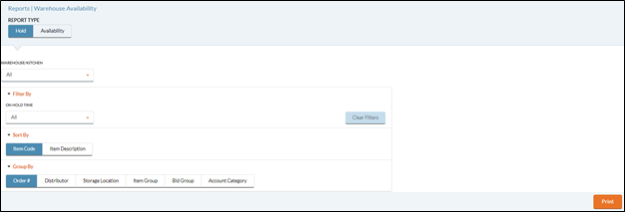
The Warehouse Hold Report lists the Items that are currently reserved in the Warehouse(s)/Kitchen(s) for filling pending Warehouse Orders and displays the quantity reserved for each Item and the Warehouse Order that it is reserved for. NOTE: If an Item is on reserve it cannot be used to fill other orders. The Quantity on Hand will not be allowed to drop below the reserve quantity when transfer and adjustments are completed.
-
Select a Warehouse/Kitchen from the dropdown list.
-
Select an On Hold Time from the dropdown list.
-
On Hold Time is the amount of time Items have been On Hand in the Warehouse/Kitchen.
-
-
You can sort how the Items are organized once printed by selecting one of the following Sort By options:
-
Select Item Code to organize the Items numerically based on their Item Code.
-
Select Item Description to organize the Items alphabetically based on their Item Description.
-
-
You can group the Items in the report by the following Group By options:
-
Click the Order # button to arrange Items on the report numerically by the Order #.
-
Click the Distributor button to arrange Items on the report alphabetically by the Distributor that supplies the Item.
-
Click the Storage Location button to arrange Items on the report alphabetically by the Storage Location.
-
Click the Item Group button to arrange Items on the report alphabetically by the Item Group.
-
Click the Bid Group button to arrange Items on the report alphabetically by the Bid Group.
-
Click the Account Category button to arrange Items on the report alphabetically by the Account Category.
-
- Click the Print button.
WAREHOUSE AVAILABILITY REPORT
The Warehouse Availability Report shows all Items that are On Hand in the Warehouse(s)/Kitchen(s) with reserved and available quantities listed for each Item. Use this report to determine which Items are currently unavailable for Warehouse Orders. NOTE: You can find out which specific Sites or Orders are reserving Items by using the Warehouse Hold Report.
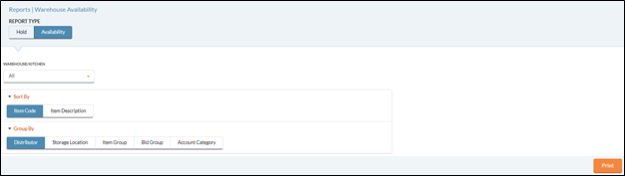
- Select a Warehouse/Kitchen from the dropdown list.
- You can sort how the Items are organized once printed by selecting one of the following Sort By options:
- Select Item Code to organize the Items numerically based on their Item Code.
- Select Item Description to organize the Items alphabetically based on their Item Description.
- You can group the Items in the report by the following Group By options:
- Click the Distributor button to arrange Items on the report alphabetically by the Distributor that supplies the Item.
- Click the Storage Location button to arrange Items on the report alphabetically by the Storage Location.
- Click the Item Group button to arrange Items on the report alphabetically by the Item Group.
- Click the Bid Group button to arrange Items on the report alphabetically by the Bid Group.
- Click the Account Category button to arrange Items on the report alphabetically by the Account Category.
- Click the Print button.
©2021 EMS LINQ Inc.
Meals Plus Web Help, 10/2019