 Search Tips
Recipe Search
Use the Recipe Search button to search for Recipe's to add to your Menu.
-
Click the
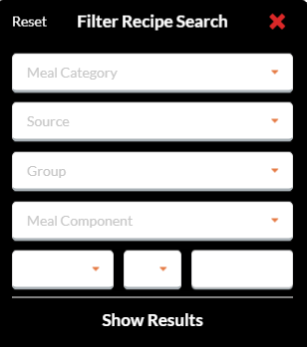
 button to display the Recipe Filter Options.
-
Clicking the Reset button will revert the filters back to their default settings.
-
Select a Meal Category from the dropdown list.
-
Select a Source from the dropdown list.
-
Select a Recipe Group from the dropdown list.
-
Select a Meal Component from the dropdown list.
-
You can search for recipes with a greater or less than amount of the following options:
-
Calories
-
Sat. Fat (SaturatedFat)
-
Sodium
-
-
Select < Less than or > Greater than from the dropdown list.
-
Enter the value parameter in the last field.
Example: To search for recipes that contain more than 400 calories per serving the fields would entered as shown:

-
Click Show Results to display results in the Recipe Search form.
-
Or, click the
 button to exit the Filter Recipe Search form.
 -
Click the Recipe Search button to find recipes to add to your menu.
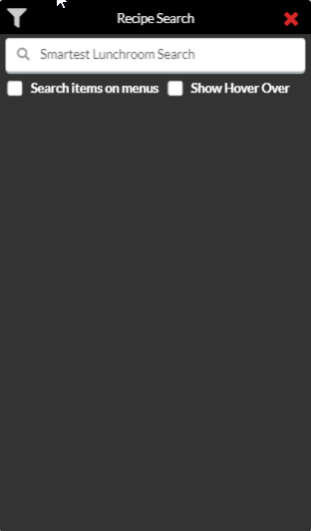
 You can move the Recipe Search box by clicking inside the title bar (where it says Recipe Search) and dragging it around the Menu Entry form.
-
Click the Search Items on Menus box to show items that are already on menus.
-
NOTE: If you have no other Menus created, no recipe results will display.
-
-
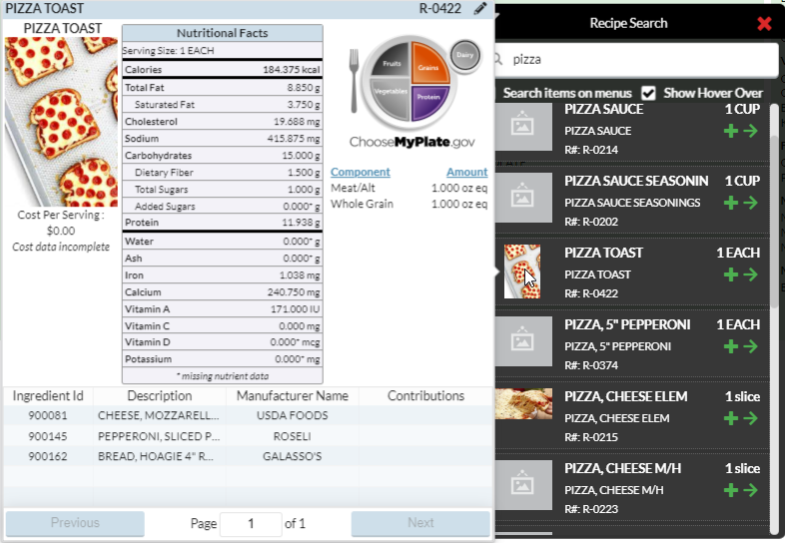
Click the Show Hover Over box to show detailed nutritional information when you hover over the recipe image.
-
There are two ways to add recipes to a menu:
The first method is useful for adding recipes to multiple days at a time.
-
Select the day(s) you want to add recipes to. The selections will be marked with a blue border around the selected day(s).

-
Click the
 button to add the recipe to the day(s).
-
NOTE: You cannot add a recipe that has a serving size of 0.
-
-
The recipes will appear on the highlighted day(s).
-
Or, you can add a recipe to the menu by clicking the name of the recipe, then dragging and dropping it on to the cycle day you want the recipe to be served on.
-
The cursor will change from the standard arrow cursor shown here:
-
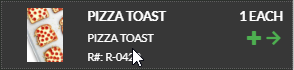
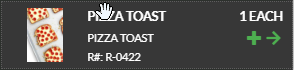
To the hand cursor one shown here (the hand cursor signifies that the selection can be dragged and dropped):
-
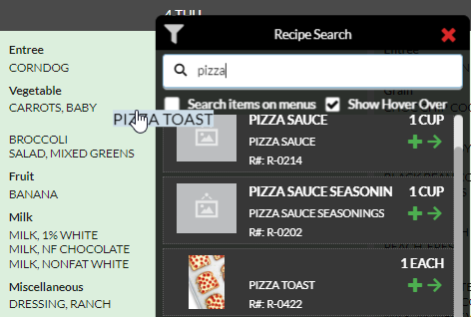
Drag the name of the recipe to a cycle day.
-
You can place the recipe anywhere within the cycle day and it will automatically be categorized to the correct category. Example: The Pizza Toast shown can be placed in the wrong category and it will automatically assign itself to the Meal Category assigned to the recipe.
-
If you add multiple instances of the same recipe, the additional recipe will be placed in the A la Carte section.
-
NOTE: The menu will only categorize based on what has been selected for the Meal Category. Even if the correct information has been entered in a recipe’s Nutrition section, it will not create an accurate analysis of the Meal Contribution Requirements because the information is incomplete.
-
 You can move recipes across cycle days by dragging and dropping.
©2021 EMS LINQ Inc.
Meals Plus Web Help, 1/2021